

Jan 16, 2026·8 min
Service area checker by ZIP code for fast quote requests
Add a service area checker by ZIP code so visitors instantly know if you serve them and can request a quote. UX tips, data options, and pitfalls.
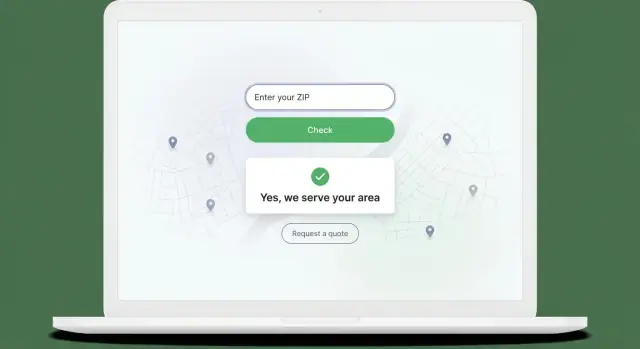
Add a service area checker by ZIP code so visitors instantly know if you serve them and can request a quote. UX tips, data options, and pitfalls.
Most visitors don’t leave because they dislike your service. They leave because they can’t answer one basic question fast: “Do you work where I live?” If they have to guess, they’ll bounce and try the next company.
Unclear coverage also creates busywork. People call or fill out forms “just to check,” and you end up spending time on leads you can’t serve. Worse, customers who are outside your area may feel misled when you tell them no, which hurts trust.
A service area checker by ZIP code fixes this with one promise: a clear answer right away.
“Instant answer” from a customer’s point of view means they type five digits, tap one button, and see a simple message immediately. No long explanation. It should be obvious what to do next, whether that’s requesting a quote or choosing another option.
This kind of widget matters most when distance changes the price, timing, or whether you can take the job at all. It’s especially useful for home services, on-site work, local delivery, and mobile services.
A quick example: a homeowner needs a water heater replaced today. They find you on their phone at lunch. If your site makes them hunt for a service map, they’ll likely move on. If they enter their ZIP and see “Yes, we serve your area - request a quote,” you remove the main reason to hesitate.
The goal isn’t to impress people. It’s to remove doubt, cut wasted contact, and help the right customers reach you faster.
A service area checker by ZIP code is a small widget that answers one question: “Do you serve my address?” The visitor types a ZIP code, taps a button, and gets a clear yes or no.
The flow stays short on purpose: enter ZIP, see the result, then take one obvious action. The best versions feel instant because people often use them while comparing providers. They don’t want to call just to be told you don’t cover their area.
When the ZIP is served, confirm coverage in plain language and move straight into a quote path. Ideally, the “Request a quote” action opens a short form already filled with the ZIP they entered, so they don’t repeat themselves.
When the ZIP isn’t served, the widget should still be polite and useful. Suggest nearby served ZIPs, offer a waitlist, or invite them to share their location so you can follow up if you expand.
At a minimum, these two outcomes should be clear:
Placement matters. This works well on the homepage (quick reassurance), on each service page (high intent), and on the contact page (to reduce low-quality inquiries). If you’re building it with a tool like Koder.ai, you can also add small touches like remembering the last ZIP checked so repeat visitors move faster.
A service area checker by ZIP code only works if it feels effortless. Keep it small and obvious: one ZIP field and one button. Label it in plain words, like “Enter ZIP code,” and keep the button simple, like “Check” or “See availability.”
After the click, show an answer fast and in plain language. Avoid terms like “coverage verification” or “serviceability.” People want a simple yes or no, plus the next step.
Message styles that work well:
If availability changes by service type (for example, repairs only in the city, installs in the whole county), say so right away in one short line under the result. Don’t hide it in fine print. A small “What do you need?” dropdown can appear only after the ZIP is valid, so the first step stays fast.
Don’t make users fight the form. Handle common input problems with friendly error text: “Please enter a 5-digit ZIP code.” Make the ZIP field numeric-friendly on mobile, and accept common formats like “12345” and “12345-6789.”
Accessibility basics matter because this is a high-traffic, high-intent step. Make sure the field and button work with a keyboard, the focus ring is visible, contrast is readable, and errors are announced near the field (not only by color). If you build this in Koder.ai, do one quick pass using only the keyboard before you publish.
Your rules decide whether the widget feels trustworthy or frustrating. Pick the simplest rule that matches how you actually dispatch work, then add nuance only where it matters.
The most reliable option is an allowlist: a saved list of ZIP codes you serve. It takes a bit of setup, but the answer is clear and easy to explain. If someone types a ZIP and it says “Yes,” you can stand behind it. For a service area checker by ZIP code, this is usually the safest default.
A radius around a base location looks simple, but it can be wrong in everyday ways. A 20-mile circle might include areas across a river with no nearby bridge, or exclude a neighborhood you do serve because driving time is short but distance is slightly over the line. Radius rules work best when your geography is simple and your team truly serves “roughly within X miles.”
If you have multiple crews or hubs, treat each one as its own mini service area. You can still keep the user experience simple: match the ZIP to the best hub behind the scenes, then show one clear result.
Common rule patterns that stay clear for customers:
Partial coverage is where many widgets break trust. If a ZIP is “Yes, but...,” say the “but” right away: “We serve this ZIP for repairs. New installs may include a travel fee.” Then keep the quote button visible and pre-fill the ZIP so the customer doesn’t repeat themselves.
A service area checker by ZIP code is only as accurate as the data behind it. If your coverage rules live in emails, spreadsheets, and someone’s memory, the widget will give inconsistent answers, and customers will feel it.
Start with one source of truth: a table that treats each ZIP as a record you can turn on, turn off, and explain. Keep it boring and searchable. You can store this in your app database (for example, PostgreSQL) so updates are fast and trackable.
A practical table structure:
That “message to show” field solves real-life situations: “We serve this ZIP for repairs only,” or “Next available appointment is in 3 days.” It keeps your UI simple while letting you be honest.
When you change coverage, you’ll want to know what the rules were last month (for reporting, refunds, or complaint handling). Add a lightweight version concept: a rule set name, start date, and end date. New updates create a new version instead of editing the old one.
Even if you only have one location today, add fields like brand_id or location_id now. Later, you can answer, “Yes, we serve you - from Location B,” without rebuilding your data model.
A good service area checker by ZIP code has one job: answer “Do you serve me?” clearly, then make the next action obvious.
Keep the input simple: one field, one button.
You need a small backend endpoint that receives a ZIP and returns a decision based on your rules (a list of served ZIPs, a radius rule, or a mix). Keep the response tiny and consistent so the UI is easy to build.
Your response should cover the outcome and what the user should do next.
{ "served": true, "message": "Yes - we serve 94107. Get a quick quote." }
After the check, show a result card directly under the input. If served, show a “Request a quote” button inside that card. If not served, say so plainly and offer a fallback like “Leave your details and we’ll confirm options” (optional).
Save ZIP + timestamp (and optionally a coarse location like city/state if you have it). Over time, this tells you where demand is and which ZIPs cause confusion.
If you’re building this in Koder.ai, you can prototype the input, endpoint, and result card quickly in planning mode, then export the code when you’re happy with the flow.
Once someone has used your service area checker by ZIP code, the next screen should feel like a natural next step, not a new task. The best flows keep momentum: one click, a short form, and a clear confirmation.
Keep the form small and practical. Ask only what you need to follow up with a real quote, and save the rest for the call or message thread. A good default is basic contact info, what they want done, and anything unusual about the job.
A simple set of fields that usually works:
Pre-filling the ZIP matters more than it sounds. If users have to retype it, some will quit. Treat the ZIP checker and the quote form as one flow: carry over the ZIP automatically, and if the user changes it, re-run the eligibility check quietly.
Set expectations before they hit submit. Tell them when they’ll hear back (for example, “We reply within 1 business day”) and what your business hours are. This cuts down on anxious follow-ups and sets a professional tone.
After submit, show a clear “we got it” message with a short summary (service + ZIP) and what happens next. Avoid dumping them back on the homepage with no confirmation.
If you’re building this with a chat-based builder like Koder.ai, treat the confirmation step as a real screen. It’s the moment that turns a visitor into a lead.
A service area checker by ZIP code feels simple until real people start typing. Plan for a few common edge cases now, so the widget stays helpful instead of frustrating.
First, handle bad input with a clear, calm message. People paste extra spaces, type 4 digits, or enter letters. Don’t just say “Invalid ZIP.” Tell them what to do next: “Enter a 5-digit ZIP code (for example, 94107).” If you support ZIP+4, accept both and normalize it.
Next, separate “we serve your ZIP” from “we do that service there.” A customer might be in your area, but you may only offer some services in that ZIP (for example, installation yes, emergency repair no). After a positive match, ask one quick follow-up like “What do you need?” and show the right outcome based on their choice.
Border areas need careful wording. If your rules are based on radius or imperfect ZIP boundaries, avoid a hard yes/no when you’re not sure. Use friendly uncertainty:
Finally, add spam protection without punishing real customers. A quote form attracts bots, but heavy captchas can crush conversions. Start with simple checks like rate limiting by IP, blocking repeated identical submissions, and a hidden field that humans won’t fill. If you build this in a tool like Koder.ai, you can implement these checks on the backend while keeping the front end fast and clean.
A quick example: someone enters 30318, gets “Yes, we serve your area,” chooses “Roof inspection,” and then sees “Available next week.” If they choose “Emergency tarp,” they see “Call to confirm availability in your ZIP.” That small branch prevents wasted leads and awkward follow-ups.
A local HVAC company has two service crews. Crew A handles routine maintenance and installations in the north side of town. Crew B focuses on urgent repairs and covers the south side plus a few nearby suburbs. Their coverage overlaps in some ZIP codes, but not all.
On their site, the service area checker by ZIP code sits above the quote button. A visitor types their ZIP and gets an instant, plain answer.
If the ZIP is covered, the result is specific: “Yes, we serve 12345. Next available appointment: as soon as tomorrow.” The page then shows a single clear button to request a quote. The form is short, but it quietly collects details that help dispatch pick the right crew.
In this mixed coverage setup, the quote request should capture:
If the ZIP isn’t covered, the message stays helpful: “We do not serve 67890 yet.” Instead of a dead end, it offers options like joining a waitlist for that area or suggesting nearby covered ZIPs to re-check. If the business has a partner network, this is where a “Request help anyway” option can route the lead for follow-up without promising service they can’t deliver.
The key is that the visitor always knows what happens next, and the company gets the right info to send the right crew the first time.
A service area checker should remove doubt. When it adds friction or gives the wrong answer, people leave or send you leads you can’t handle.
Here are the issues that most often cause trouble, and how to avoid them.
If you’re building a service area checker by ZIP code, do a quick dry run with 10 ZIPs: five you serve and five you don’t. One wrong “yes” can waste hours, and one wrong “no” can cost you a good customer.
Before you add a service area checker by ZIP code to your site, do a quick pass for the details that decide whether people trust it. Most problems aren’t about the logic. They’re about unclear states, missing feedback, and extra typing.
Run this checklist on desktop and mobile (real phones if you can). Aim for a result that feels instant, even if the check takes a moment.
One quick reality check: ask someone who has never seen the widget to try it. If they hesitate or ask “What do I do next?”, adjust the copy and button labels until the flow is obvious.
Pick a first version you can explain in one sentence. For many businesses, that’s either a ZIP allowlist (you serve these ZIPs, you don’t serve the rest) or a radius rule with a short set of exceptions for areas you avoid or always accept.
Start small with placement. Put the service area checker by ZIP code on one high-intent page first, like your main “Get a quote” page, and watch how people use it before adding it everywhere.
Track a few signals so you can improve based on facts:
Treat service coverage like a living setting, not a one-time build. Review and update it monthly. Even if you don’t build a full admin panel yet, assign ownership (who updates it), keep a clear source of truth, and record what changed and why.
If speed matters, prototyping the checker and quote flow in Koder.ai can help you get a working version in front of customers quickly. Once real ZIP checks start coming in, you can adjust the wording, rules, and form fields, and use snapshots and rollback to undo changes that create confusion.
Add it near the first decision point, usually above the main call-to-action on your homepage and on high-intent pages like “Get a quote” or individual service pages. The goal is to answer the ZIP question before someone scrolls, clicks, or fills a form.
Default to an allowlist of ZIP codes you truly serve. It’s easier to explain, easier to maintain, and less likely to give “technically true but practically wrong” answers than a simple mile radius.
Show a plain error only after they try to check, and tell them exactly what to fix, like “Enter a 5-digit ZIP code.” Accept common formats such as ZIP+4 by normalizing it to the first five digits.
Say “Yes” or “No” immediately, then add one short line if there’s a condition like “Repairs only” or “Travel fee may apply.” If the answer is uncertain near borders, be honest and guide them to request a quote so you can confirm.
Keep it helpful instead of ending the conversation. Offer one clear alternative such as a waitlist, a request-anyway option for special cases, or a prompt to enter a nearby ZIP they might be in.
Carry the ZIP into the quote form automatically and keep the form short. If the user changes the ZIP in the form, re-check eligibility quietly so you don’t accept requests for areas you can’t serve.
Store ZIP codes as text, add an active flag, and include a customer-facing message field for special notes like “Repairs only.” If you expect changes over time, keep versions of rule sets so you can audit what the checker said on a given date.
Log the ZIP checked, timestamp, and whether it was served, then compare that to quote starts and submissions. This shows where demand is coming from, which ZIPs cause confusion, and whether the checker is reducing low-quality inquiries.
Start with rate limiting and basic bot filters that don’t interrupt real users. A hidden “honeypot” field and blocking repeated identical submissions can cut spam without adding hard challenges that lower conversions.
Build the flow as a single, fast interaction: one field, one button, and a result card with the next step. In Koder.ai, you can prototype the UI and the check endpoint quickly, then use snapshots and rollback to safely adjust copy and rules based on real checks.