

Sep 14, 2025·7 min
Safe user impersonation: guardrails for support access
Safe user impersonation for support teams without privacy accidents: scoped access, visible banners, approvals, audit events, and quick checks to ship safely.
Why impersonation helps support and how it goes wrong
Support teams ask for impersonation because screenshots and long email threads are slow. If an agent can see what a customer sees, they can confirm settings, reproduce an error, and point to the exact button or field that fixes the problem. It also helps when a user is locked out, misconfigured something, or can’t explain what changed.
The risk starts when “let support log in as the user” quietly becomes “support can access everything.” That’s how small debugging requests turn into privacy incidents: an agent opens messages, downloads files, views billing details, or changes account security without a clear need. Even with good intentions, the failure modes are the same: sensitive data exposure, accidental changes that look like user behavior, and weak audit trails when someone later asks, “Who did what, and why?”
Most users expect three things:
- Transparency: they want to know when someone is acting as them.
- Control: clear rules for when it’s allowed, plus a record they can review.
- Minimal access: only what’s needed for the ticket, for the shortest time.
It also helps to define terms precisely. Impersonation means a support agent temporarily assumes the user’s in-app identity to reproduce a problem in context, with strong limits and clear labeling. Admin access means using administrator powers to manage the account (reset MFA, edit subscriptions, export data) without pretending to be the user. Mixing these two is where many “safe user impersonation” designs fail.
A simple example: a customer says, “My invoice download button does nothing.” View-only impersonation can confirm the page state and the relevant settings. Full impersonation without guardrails can quickly turn into opening every invoice, downloading documents, or changing billing details “while you’re in there.” The tool should make the first easy and the second hard.
Pick the right level of impersonation (view vs act)
Before you build a support impersonation tool, decide what “impersonation” means in your product. Most teams end up needing two levels:
- View-as: support can see what the user sees.
- Act-as: support can do actions on the user’s behalf.
Pick the wrong level and you either don’t solve tickets, or you create privacy risk you can’t defend later.
Start with the lowest-risk option
Most teams should begin with view-as. It solves a lot of “I can’t find the button” and “the page looks broken” tickets without letting support change data. Add act-as only for a small set of tasks that truly need it.
A practical way to define levels is to be explicit about what support is allowed to do. A common baseline is read-only by default, then separate scopes for specific write actions. Many products also draw bright lines around billing changes, data exports, and secrets like API keys.
Define success criteria upfront
Impersonation isn’t a feature you ship “because everyone has it.” Pick outcomes you can measure: fewer back-and-forth messages, faster resolution time, and fewer support mistakes. If you can’t measure improvement, permissions tend to expand until something breaks.
Map your most sensitive areas
List the places where a single click can cause real harm: private messages, payments, identity and security settings, personal data fields, and anything that can export or delete data.
If a user says “my invoice looks wrong,” view-as might be enough to confirm what they see. If you must act-as, restrict it to the exact action you need, not “billing admin forever.”
If you’re building this inside a platform like Koder.ai, treat impersonation as a capability with levels, not a single on/off switch. It makes later guardrails (scopes, banners, approvals, and audits) much easier to apply cleanly.
Guardrail 1: Scoped access that is narrow by default
The safest approach is to assume the agent should see and do less, not more. Start with explicit scopes that describe both the product area and the exact actions allowed. “Read billing invoices” and “update billing address” should be different scopes, even if they appear on the same screen.
Keep scopes tied to real support tasks. A solid scope model usually has four limits:
- Where: the product area (settings, projects, invoices, messages).
- What: actions (view, edit, cancel, export).
- Who: a single target user, not “any user in this workspace.”
- When: a short time window.
Time matters more than most teams expect. Impersonation sessions should expire quickly by default (often 10 to 20 minutes) and require an explicit new request to continue. That prevents a forgotten tab from turning into a silent access window.
A simple policy that works in practice: one user per session, one product area per session, read-only by default, automatic expiry with no silent renewal, and a separate “break glass” mode that’s rare and tightly controlled.
Guardrail 2: Make impersonation visible in the UI
If a support rep can forget they’re impersonating a customer, sooner or later they’ll do something they shouldn’t. Visibility is the daily safety net that prevents “oops” moments.
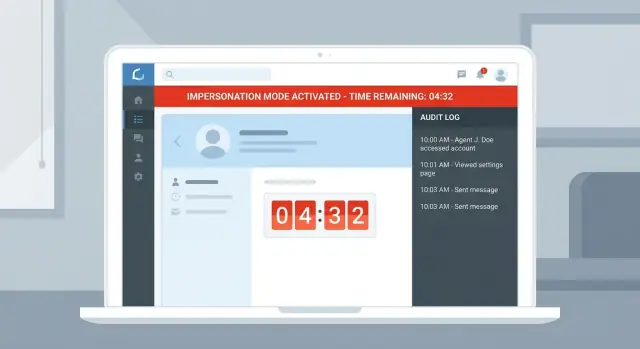
Make the state impossible to miss with a persistent banner that can’t be dismissed. It should appear on every page, including settings and billing.
That banner should always show three things: who is impersonating, who is being impersonated, and why the session exists (ticket number or case). The “why” forces a real reason up front and gives reviewers context later.
Don’t rely on the header alone. Use an obvious visual shift across the whole UI (color change, border, distinct frame) so it’s recognizable even when someone is moving quickly between tabs.
Keep “Exit impersonation” in the banner. Don’t hide it in a menu. Exiting should be faster than continuing.
If sessions are time-limited, show a countdown timer. It reduces long sessions and nudges people to request a fresh session (and fresh approval) when needed.
Guardrail 3: Approval flows for elevated access
Most support tasks don’t need full power. Approval flows keep elevated access rare, visible, and time-bound.
Require a reason for every session, even low-risk ones. Keep it short and structured so people can’t hide behind vague notes.
Make “why” and “how long” non-optional
A good request form makes approvals faster and audits meaningful. At a minimum, capture the ticket or case ID, requested scope, duration, a short reason (category plus one sentence), and whether the user or account owner must be notified.
Add approvals only when the scope crosses a risk line. Typical “approval required” scopes include billing changes, data exports, permission changes, and anything that affects other users.
Two-person rule for “break glass”
Some actions are so risky they should require two people: one to request, one to approve. Treat these as rare and urgent, not a convenience shortcut.
Break-glass actions often include exporting large datasets, resetting MFA or changing account ownership, and editing admin roles or security settings.
Approvals should expire automatically. If the work isn’t done in time, the agent requests again. Keep the approver pool small (team lead, security, on-call manager) and make exceptions explicit.
Finally, decide when to notify the user or account owner. In many cases, a simple notice like “Support accessed your account to resolve ticket 12345” is enough. If you can’t notify immediately (for example, suspected account takeover), require a documented exception and a shorter approval window.
Guardrail 4: Audit events that stand up to scrutiny
Go from idea to rollout
Deploy your support console and iterate with real tickets without long setup cycles.
If impersonation ever becomes a problem, your audit log is what proves what actually happened. It should answer five questions quickly: who did it, to whom, why, what they were allowed to access, and what they changed.
Start by logging the session itself: start and end time, the support agent (actor), the customer (target), the scope granted, and the stated reason. Tie it to a support ticket or case ID.
Then log sensitive actions taken during the session, not just errors. High-risk actions are usually a small list: exporting data, deleting records, changing permissions, updating payment details, resetting MFA or passwords, and viewing secrets like API keys. These events should be obvious, searchable, and easy to review.
Include enough metadata to reconstruct what happened: timestamp, IP address, device or user agent, environment (prod vs staging), and the exact object affected (which invoice, which role, which user). Store both identities on each event: the actor (support agent) and the effective user (the impersonated account).
Make logs hard to tamper with and tightly controlled. Only a small group should be able to view them, and almost nobody should be able to edit or delete them. If you support data exports, log exports of audit logs too.
It’s also worth alerting on patterns that rarely happen in normal support work: one agent impersonating many users quickly, repeated exports, sensitive actions outside business hours or from a new location, scope escalations followed by high-risk actions, or repeated failed approval attempts.
Guardrail 5: Data minimization and action limits
Impersonation should show the smallest amount of data needed to fix the problem. The goal is support speed without turning every session into full account access.
Mask the most sensitive fields by default, even if the agent is looking at the real UI. Revealing should be a deliberate action with a clear reason. Common examples include API keys and recovery codes, full payment details (show last 4 digits only), and highly sensitive personal data.
Next, block actions that can lock a user out or change ownership. In impersonation mode, it’s usually safer to allow “diagnose and fix” actions (like retrying a failed sync) but deny identity and money actions.
Data export is another frequent footgun. Disable bulk downloads (CSV exports, invoices, chat logs, attachments) unless there’s explicit approval tied to a ticket and a short time window.
Finally, put hard limits in place so even a well-meaning agent can’t overreach: short session timeouts, rate limits on impersonation starts and sensitive actions, one active session at a time, and a cooldown after repeated failed attempts.
If your support process uses screenshots or screen recordings, apply the same minimization. Masking still applies, require a ticket reference, and store them for the shortest time you can.
How to build it: a simple step-by-step blueprint
Ship impersonation guardrails faster
Turn your guardrails checklist into a working internal app from a simple chat.
Treat impersonation as its own security feature, not a shortcut. The safest builds make access temporary, narrow, and visible, and they leave a trail you can review later.
-
Define roles and “who can do what.” Common roles are support agent, supervisor, security, and admin. Decide who can start impersonation, who can approve it, and who can only review logs.
-
Write a permission matrix that maps to real tasks. Avoid “all user data.” Prefer scopes like “billing read,” “subscription cancel,” “reset MFA,” or “view recent errors.” Keep the default scope small.
-
Create an impersonation session object on the server. Require a reason, the target user, allowed scopes, and a hard expiry. Treat this separately from normal login sessions.
-
Enforce scope checks on every request, server-side. Don’t rely on the UI to hide buttons. Every sensitive endpoint should verify an active, unexpired session, allowed scope, and that the staff member still has the right role.
-
Make it obvious and auditable. Add a persistent banner on every page while impersonating, include a one-click exit, and log session start/end plus any sensitive actions.
If you build apps on a platform like Koder.ai, keep the same principle: scopes and audit events must live in backend checks, not just in generated UI logic.
Example scenario: resolving a billing issue without overreach
A customer writes in: they can see last month’s charge, but their invoice is missing and the receipt download fails. Guessing is slow; confirming what the customer sees is faster.
The agent requests a view-only impersonation session for that single user account. They enter a reason like “Verify invoice visibility and receipt download error for ticket #18422.” The request is narrow: read access to billing screens, no ability to change payment methods, and no access to unrelated areas like messages or files.
Because invoices are sensitive, the request routes to a supervisor for approval. The supervisor reviews the scope, the reason, and the time limit (for example, 15 minutes), then approves.
When the agent opens the account, a bright banner makes it obvious they’re acting as the user, including the scope and a countdown timer. That’s what safe user impersonation should feel like: clear, temporary, and hard to misuse.
The agent confirms the invoice exists but the account is set to “email invoices only,” and receipt downloads are blocked by a disabled billing permission. They don’t change anything while impersonating. Instead, they exit impersonation and apply the fix as an admin action in the normal support panel.
Afterward, the audit trail is unambiguous: who requested access, who approved it, when impersonation started and ended, what scope was granted, and what admin changes were made outside the session.
Common mistakes that lead to privacy disasters
Most privacy failures with impersonation aren’t fancy hacks. They’re ordinary shortcuts that turn a helpful feature into an all-access backdoor.
One trap is treating safety as a UI problem. If someone can flip a front-end flag (or tweak a request in the browser) and gain access, you don’t have real control. Enforcement has to happen on the server, on every request.
Another common failure is building “safe user impersonation” as a single mode that automatically inherits everything the user can do. Support rarely needs full power. When impersonation can see all data, edit any setting, and export anything, one mistake or one compromised support account becomes a major incident.
The patterns that show up again and again are predictable: full access by default, sessions that never expire, banners that are easy to miss, audit logs that only capture start/end (not actions), and high-risk actions allowed during impersonation (password resets, MFA changes, deletions).
A practical rule helps: if an action would be damaging in the wrong hands, block it in impersonation mode by default and force a separate, explicit workflow to perform it.
Quick checklist before you ship impersonation
Plan the workflow first
Map roles, scopes, and risky actions before you generate any code.
Before you turn on impersonation for support, do a final pass with a “worst day” mindset: a rushed agent, a curious coworker, or a compromised admin account.
- Scope is narrow by default: one target user at a time, and only the product area needed.
- Every session requires a written reason and auto-expires quickly.
- The UI makes it obvious: a persistent banner on every page shows actor, target, and expiry.
- Higher-risk scopes require approval, especially for actions that affect money, permissions, or exports.
- Audit logs capture actor, target, scope, reason, timestamps, IP/device hints, and the exact actions taken.
Test the escape hatch: a one-click “exit impersonation” that works even if the app errors.
Test the hard stops too. If an action is forbidden under impersonation (viewing full payment details, changing MFA, exporting data, resetting passwords), block it at the server, not just the UI. Make the error clear and log the blocked attempt.
If you can’t confidently answer who did what, to which user, for what reason, and under what approval, you’re not ready to ship.
Next steps: roll out safely and keep improving
Treat safe user impersonation like a production feature, not a hidden admin trick. Write the rules in plain language: what support can see, what they can do, what needs approval, and what’s always forbidden. If a new agent can’t understand it in five minutes, it’s too vague.
Start with a pilot. Pick a few experienced support agents, then review impersonation audit events together every week. Look for patterns: repeated access to the same accounts, access outside working hours, or actions that weren’t needed to solve the ticket.
Keep the rollout plan simple: publish the scope and approval rules, run a 2 to 4 week pilot with weekly log review, add test cases for forbidden actions and verify the server blocks them, assign incident response owners, then re-check scopes quarterly and tighten anything that’s rarely used.
If you want to prototype the workflow quickly, Koder.ai (koder.ai) can help you build and iterate on an internal support tool with planning mode, then use snapshots and rollback while you test the guardrails with real support tickets.