

Oct 02, 2025·8 min
Read-only mode during incidents: keep reads, block writes
Learn how read-only mode during incidents helps you block writes, keep key reads working, and communicate clearly in the UI when your database is stressed.
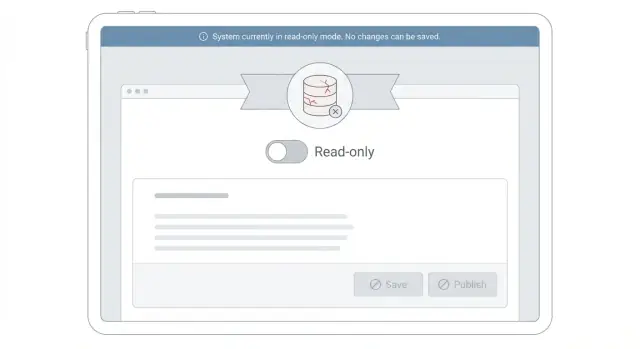
Learn how read-only mode during incidents helps you block writes, keep key reads working, and communicate clearly in the UI when your database is stressed.
When your database is overloaded, users rarely see a clean "down" message. They see timeouts, pages that load halfway, buttons that spin forever, and actions that sometimes work and sometimes fail. A save might succeed once, then error the next time with "Something went wrong." That uncertainty is what makes incidents feel chaotic.
The first things to break are usually the write-heavy paths: editing records, checkout flows, form submits, background updates, and anything that needs a transaction and locks. Under stress, writes get slower, they block each other, and they can also slow down reads by holding locks and forcing more work.
Random errors feel worse than a controlled limitation because users can't tell what to do next. They retry, refresh, click again, and create even more load. Support tickets spike because the system looks "kind of working," but nobody can trust it.
The point of read-only mode during incidents isn't perfection. It's to keep the most important parts usable: viewing key records, searching, checking status, and downloading what people need to continue their work. You intentionally stop or delay the risky actions (writes) so the database can recover and the remaining reads stay responsive.
Set expectations clearly. This is a temporary limit, and it doesn't mean data is being deleted. In most cases, the user's existing data is still there and safe - the system is simply pausing changes until the database is healthy again.
Read-only mode during incidents is a temporary state where your product stays usable for viewing, but refuses anything that would change data. The goal is simple: keep the service helpful while you protect the database from extra work.
In plain terms, people can still look things up, but they can't make changes that trigger writes. That usually means browsing pages, searching, filtering, and opening records still work. Saving forms, editing settings, posting comments, uploading files, or creating new accounts are blocked.
A practical way to think about it is: if an action updates a row, creates a row, deletes a row, or writes to a queue, it isn't allowed. Many teams also block "hidden writes" like analytics events stored in the primary database, audit logs written synchronously, and "last seen" timestamps.
Read-only mode is the right choice when reads are still mostly working, but write latency is climbing, lock contention is growing, or a backlog of write-heavy work is slowing everything down.
Go fully offline when even basic reads time out, your cache can't serve the essentials, or the system can't reliably tell users what's safe to do.
Why this helps: writes often cost far more than a simple read. A write can trigger indexes, constraints, locks, and follow-up queries. Blocking writes also prevents retry storms, where clients keep resubmitting failed saves and multiply the damage.
Example: during a CRM incident, users can still search accounts, open contact details, and view recent deals, but the Edit, Create, and Import actions are disabled and any save request is rejected immediately with a clear message.
When you switch to read-only mode during incidents, the goal isn't "everything works." The goal is that the most important screens still load, while anything that creates more database pressure stops quickly and safely.
Start by naming the few user actions that must keep working even on a bad day. These are usually small reads that unblock decisions: viewing the latest record, checking a status, searching a short list, or downloading a report that's already cached.
Then decide what you can pause without causing major harm. Most write paths fall into "nice to have" during an incident: edits, bulk updates, imports, comments, attachments, analytics events, and anything that triggers extra queries.
A simple way to make the call is to sort actions into three buckets:
Also set a time horizon. If you expect minutes, you can be strict and block almost all writes. If you expect hours, consider allowing a very limited set of safe writes (like password resets or critical status updates) and queue everything else.
Agree on the priority early: safety over completeness. It's better to show a clear "changes are paused" message than to allow a write that half-succeeds and leaves data inconsistent.
Switching to read-only is a trade: fewer features now, but a usable product and a healthier database. The goal is to act before users trigger a spiral of retries, timeouts, and stuck connections.
Watch for a small set of signals you can explain in one sentence. If two or more show up at the same time, treat it as an early warning:
Metrics alone shouldn't be the only trigger. Add a human decision: the on-call person declares an incident state and turns on read-only mode. That stops debates in the middle of pressure and makes the action auditable.
Make the thresholds easy to remember and easy to communicate. "Writes are paused because the database is overloaded" is clearer than "we hit saturation." Also define who can flip the switch and where it's controlled.
Avoid flapping between modes. Add simple hysteresis: once you go read-only, stay there for a minimum window (like 10 to 15 minutes) and only switch back after key signals are normal for a while. This prevents users from seeing forms that work one minute and fail the next.
Treat read-only mode during incidents as a controlled change, not a scramble. The goal is to protect the database by stopping writes, while keeping the most valuable reads working.
If you can, ship the code path before you flip the switch. That way, turning read-only on is just a toggle, not a live edit.
READ_ONLY=true. Avoid multiple flags that can drift out of sync.When read-only is active, fail fast before hitting the database. Don't run validation queries and then block the write. The fastest blocked request is the one that never touches your stressed database.
When you enable read-only mode during incidents, the UI becomes part of the fix. If people keep clicking Save and getting vague errors, they'll retry, refresh, and open tickets. Clear messaging reduces load and frustration.
A good pattern is a visible, persistent banner at the top of the app. Keep it short and factual: what's happening, what users should expect, and what they can do now. Don't hide it in a toast that disappears.
Users mainly want to know whether they can keep working. Spell it out in plain language. For most products, that means:
A simple status label also helps people understand progress without guessing. "Investigating" means you're still finding the cause. "Stabilizing" means you're reducing load and protecting data. "Recovering" means writes will return soon, but may be slow.
Avoid blamey or vague text like "Something went wrong" or "You did not have permission." If a button is disabled, label it: "Editing is temporarily paused while we stabilize the system."
A small example: in a CRM, keep contact and deal pages readable, but disable Edit, Add note, and New deal. If someone tries anyway, show a short dialog: "Changes are paused right now. You can copy this record or export the list, then try again later."
When you switch to read-only mode during incidents, the goal isn't "keep everything visible." It's "keep the few pages people rely on," without adding more pressure to a stressed database.
Start by trimming the heaviest screens. Long tables with many filters, free-text search across multiple fields, and fancy sorts often trigger slow queries. In read-only, make those screens simpler: fewer filter options, a safe default sort, and a capped date range.
Prefer cached or precomputed views for the pages that matter most. A simple "account overview" that reads from a cache or a summary table is usually safer than loading raw event logs or joining many tables.
Practical ways to keep reads alive without making the load worse:
A concrete example: in a CRM incident, keep View contact, View deal status, and View last note working. Temporarily hide Advanced search, Revenue chart, and Full email timeline, and show a note that data may be a few minutes old.
When you switch to read-only mode during incidents, the biggest surprise is often not the UI. It's the invisible writers: background jobs, scheduled syncs, admin bulk actions, and third-party integrations that keep hammering the database.
Start by stopping background work that creates or updates records. Common culprits are imports, nightly syncs, email sending that writes delivery logs, analytics rollups, and retry loops that keep trying the same failed update. Pausing these reduces pressure fast and avoids a second wave of load.
A safe default is to pause or throttle write-heavy jobs and any queue consumers that persist results, disable admin bulk actions (mass updates, bulk deletes, large re-indexes), and fail fast on write endpoints with a clear temporary response rather than timing out.
For webhooks and integrations, clarity beats optimism. If you accept a webhook but can't process it, you'll create mismatches and support churn. When writes are paused, return a temporary failure that tells the sender to try again later, and make sure your UI messaging matches what you're doing behind the scenes.
Be careful with "queue it for later" buffering. It sounds friendly, but it can create a backlog that floods the system the moment you turn writes back on. Only buffer user writes if you can guarantee idempotency, cap the queue size, and show the user the true state (pending vs saved).
Finally, audit hidden bulk writers in your own product. If an automation can update thousands of rows, it should be forced off in read-only mode even if the rest of the app still loads.
The fastest way to make a bad incident worse is to treat read-only mode as a cosmetic change. If you only disable buttons in the UI, people will still write through APIs, old tabs, mobile apps, and background jobs. The database stays under pressure, and you also lose trust because users see "saved" in one place and missing changes in another.
A real read-only mode during incidents needs one clear rule: the server refuses writes, every time, for every client.
These patterns keep showing up during database overload:
Make the system behave predictably. Enforce a single server-side switch that rejects writes with a clear response. Add a cooldown so once you enter read-only, you stay there for a set time (for example 10 to 15 minutes) unless an operator changes it.
Be strict about data integrity. If a write can't fully complete, fail the whole operation and tell the user what to do next. A simple message like "Read-only mode: viewing works, changes are paused. Try again later." reduces repeated retries.
Read-only mode during incidents only helps if it's easy to switch on and behaves the same everywhere. Before trouble starts, make sure there is a single toggle (feature flag, config, admin switch) that on-call can enable in seconds, without a deployment.
When you suspect database overload, do a fast pass that confirms the basics:
During the incident, keep one person focused on verifying the user experience, not just dashboards. A quick spot check in an incognito window catches issues like hidden banners, broken forms, or endless spinners that create extra refresh traffic.
Plan the exit before you turn it on. Decide what "healthy" means (latency, error rate, replication lag) and do a short verification after switching back: create one test record, edit it, and confirm counts and recent activity look correct.
It's 10:20 AM. Your CRM is slow, and database CPU is pinned. Support tickets start coming in: users can't save edits to contacts and deals. But the team still needs to look up phone numbers, see deal stages, and read the last notes before calls.
You choose a simple rule: freeze anything that writes, keep the most valuable reads. In practice, contact search, contact detail pages, and the deal pipeline view stay up. Editing a contact, creating a new deal, adding notes, and bulk imports are blocked.
In the UI, the change should be obvious and calm. On edit screens, the Save button is disabled and the form stays visible so people can copy what they typed. A banner at the top says: "Read-only mode is on due to high load. Viewing is available. Changes are paused. Please try again later." If a user still triggers a write (for example via an API call), return a clear message and avoid auto-retries that hammer the database.
Operationally, keep the flow short and repeatable. Enable read-only and verify all write endpoints honor it. Pause background jobs that write (syncs, imports, email logging, analytics backfills). Throttle or pause webhooks and integrations that create updates. Monitor database load, error rate, and slow queries. Post a status update with what's affected (edits) and what still works (search and views).
Recovery isn't just flipping the switch back. Re-enable writes gradually, verify error logs for failed saves, and watch for a write storm from queued jobs. Then communicate clearly: "Read-only mode is off. Saving is restored. If you tried to save between 10:20 and 10:55, please recheck your last changes."
Read-only mode during incidents works best when it's boring and repeatable. The goal is to follow a short script with clear owners and checks.
Keep it to one page. Include your triggers (the few signals that justify switching to read-only), the exact switch you flip and how you confirm writes are blocked, a short list of key reads that must still work, clear roles (who flips the switch, who watches metrics, who handles support), and exit criteria (what must be true before you re-enable writes, and how you'll drain backlogs).
Write and approve the text now so you don't argue about wording during an outage. A simple set usually covers most cases:
Practice the switch in staging and time it. Make sure support and on-call can find the toggle quickly and that logs clearly show blocked writes. After each incident, review which reads were truly critical, which were nice-to-have, and which accidentally created load, then update the checklist.
If you build products on Koder.ai (koder.ai), it can be helpful to treat read-only as a first-class toggle in your generated app so the UI and server-side write guards stay consistent when you need them most.
Usually your write paths degrade first: saves, edits, checkouts, imports, and anything that needs a transaction. Under load, locks and slow commits make writes block each other, and those blocked writes can also slow down reads.
Because it feels unpredictable. If actions sometimes work and sometimes fail, users keep retrying, refreshing, and clicking again, which adds more load and creates even more timeouts and stuck requests.
It’s a temporary state where the product stays useful for viewing data but refuses changes. People can browse, search, and open records, but anything that would create, update, or delete data is blocked.
Default to blocking any action that writes to the primary database, including “hidden writes” like audit logs, last-seen timestamps, and analytics events stored in the same database. If it changes a row or enqueues work that writes later, treat it as a write.
Turn it on when you see early signs that writes are spiraling: timeouts, rising p95 latency, lock waits, connection pool exhaustion, or repeated slow queries. It’s better to switch before users start retry storms that amplify the incident.
Use one global toggle and make the server enforce it, not just the UI. The UI should disable or hide write actions, but every write endpoint should fail fast with the same clear response before it hits the database.
Show a persistent banner that says what’s happening, what still works, and what’s paused, in plain language. Make blocked actions explicit so users don’t keep trying and you don’t get a flood of “Something went wrong” tickets.
Keep a small set of essential pages working, and simplify anything that triggers heavy queries. Prefer cached summaries, smaller page sizes, safe default sorts, and slightly stale data over complex filters and expensive joins.
Pause or throttle background jobs, syncs, imports, and queue consumers that write results to the database. For webhooks, don’t accept work you can’t commit; return a temporary failure so senders retry later instead of creating silent mismatches.
Only disabling buttons in the UI is the big one; APIs, mobile clients, and old tabs will still write. Another common issue is flapping between modes; add a minimum time window in read-only and only switch back after metrics are stable, then verify with a real create/edit test.