

Dec 21, 2025·7 min
Magic links vs passwords: picking the right login UX
Magic links vs passwords: learn the UX and security tradeoffs around takeovers, email deliverability, and what enterprise buyers expect.
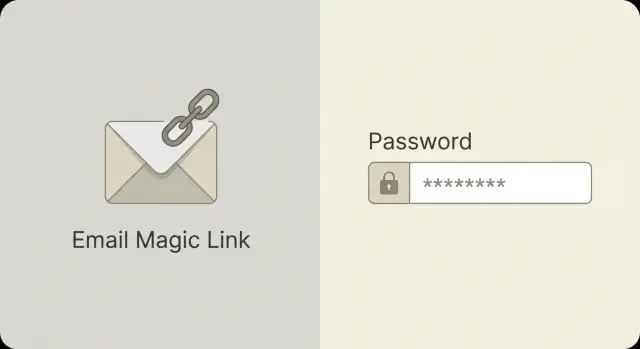
Magic links vs passwords: learn the UX and security tradeoffs around takeovers, email deliverability, and what enterprise buyers expect.
Login is one of the few screens every user touches, often on day one. If it feels slow or confusing, people leave. If it feels too easy for the wrong person, you can lose data, money, or control of accounts. So the choice between magic links and passwords isn't just a UI preference. It's a product decision with real security and support costs.
When people say “risk,” they usually mean a few practical questions: can someone spend money, see private data, change settings, or affect other users? A read-only newsletter account is low risk. An admin dashboard, billing page, or workspace with customer data is high risk. Your login method should match that reality.
Getting it wrong is expensive. Lockouts create support tickets and manual recovery work. Annoying logins create churn: people abandon sign-up, don’t return, or make duplicate accounts. And if attackers get in, you pay in refunds, incident response, and trust.
There isn’t a single best option for every app because audiences differ. Some users expect a classic password plus extra checks. Others want “send me a link” and never think about credentials again.
A useful way to frame the decision:
A solo creator tool might prioritize speed to first login. A team product with admin roles usually needs stronger controls and a clearer recovery story from day one.
A magic link lets a user sign in without typing a password. They enter an email address, your app sends a message, and they click a link (or button) in that email to sign in.
On a good day, it feels effortless: type email, open inbox, click, done. That’s why teams consider magic links when they want fewer “forgot password” moments.
Most magic links should be one-time and short-lived. After the user clicks, the link should expire quickly (often within minutes) so it can’t be reused from an old email thread. If you allow long-lived or reusable links, treat them like a key. They’re convenient, but risky if the email is forwarded, synced to many devices, or accessed by someone else.
Common variants include a pure “click to sign in” link, a short code (often 6 digits) as a fallback when the link doesn’t open correctly, or a “confirm on this device” flow where the user approves a login attempt from another already-signed-in device.
The hidden dependency is email access and speed. If the email arrives late, lands in spam, or the user is offline, login fails. So magic links can feel great when deliverability is solid and surprisingly frustrating when it isn’t.
A password login is rarely just one form field. Most products pair it with email verification, a reset flow, device checks, and often multi-factor authentication (MFA). When it works, it’s familiar and fast. When it doesn’t, it can be annoying.
Modern password UX often looks like: create a password, confirm your email, and sometimes complete a second step (an authenticator code, SMS, or a hardware key) when the sign-in looks risky. Teams also add rate limits, bot checks, and alerts like “new sign-in from Chrome on Windows.” Users barely notice these until something goes wrong.
Password managers have changed the day-to-day reality. Many people don’t type passwords anymore. They use Face ID, a browser prompt, or autofill. Strong, unique passwords can be painless if your form supports autofill and doesn’t block paste or hide fields in odd ways.
The rough moment is still “I forgot my password.” Users guess a few times, request a reset email, switch to their inbox, then set a new password under time pressure. If your reset email is slow, filtered, or confusing, the whole login experience feels broken.
Passwords can be strong without being hard to use. Allow long passphrases, accept spaces and special characters, avoid strange rules, and encourage uniqueness. Add optional MFA and a manager-friendly form, and passwords remain a dependable default for many products.
This debate often sounds like security vs convenience, but users experience it as speed and friction. The biggest difference usually shows up later, not on day one.
For first login, magic links can be faster because there’s nothing to create or remember. Passwords often take longer the first time because people pause to pick something “good enough,” confirm it, then hit a rule they didn’t expect.
For repeat login, the advantage can flip. If someone is on a new device, a magic link may mean waiting for email and switching apps. A password can be a quick autofill. But if the password isn’t saved, repeat login turns into a reset loop.
New-device sign-ins are where feelings get sharp. With magic links, users think, “Why am I being emailed again?” With passwords, they think, “Do I remember it?” Either way, security checks add steps, and short-session products feel that friction more.
Low connectivity makes magic links fragile. If email sync is slow, users can get stuck even though your app is fine. Password sign-in can still fail without internet, but it doesn’t depend on receiving a message.
Shared devices also change the risk:
A clear sign-out button, visible session controls, and sensible timeouts often matter more than the login method.
Email changes are another pain point. If someone loses access to an inbox, magic-link accounts can be hard to recover. Password accounts can survive an email change if you support verified updates, but you still need recovery that doesn’t rely only on the lost email.
Both approaches can be safe, and both can fail. “Passwordless” isn’t the same as “riskless.”
A magic link is only as strong as the inbox and the path the email takes. Common takeover paths:
The core risk pattern is simple: whoever can open that email can sign in.
Passwords fail in more predictable, high-volume ways:
With passwords, attackers don’t need the user’s email. They just need a working password, and bots are good at finding them.
Session length and device trust matter for both. Longer sessions reduce friction but increase the damage window if a laptop is stolen. “Trusted devices” let you add extra checks on new devices without punishing every login.
MFA fits with both approaches. You can add a second step after a password or after a magic-link click. Strong setups use MFA on new devices, sensitive actions, and account changes, not only at login.
Magic links feel simple because the login step moves to the inbox. That also means your login depends on deliverability: spam filters, sending limits, and delays. With passwords, slow email mostly affects resets. With magic links, it can block every login.
Providers decide what looks suspicious based on sender reputation, content, and user behavior. Some also throttle bursts of similar emails. If a user taps “send me a link” three times, you might send three nearly identical messages in a minute, which can get slowed down or flagged.
When email is unreliable, the failure is obvious. Users don’t think “deliverability issue.” They think your product is broken. Common outcomes:
Corporate gateways can quarantine messages without telling the user. Shared inboxes (like support@) mean anyone with access can click a login link. Forwarding rules can send links to places the user doesn’t check.
If you choose magic links, plan for “email is down” days. A basic fallback reduces support load and abandonment. That might be a one-time code the user can type, an authenticator-based method, or a password backup. For many apps, the best answer is “magic links are primary, but not the only door.”
Enterprise buyers rarely lead with “magic links or passwords?” They start with “can this fit our identity system, and can we control it?” Centralized control matters more than login style.
Single sign-on (SSO) is often the first checkbox. Many companies want employees to sign in with an existing identity provider, not a separate password database or a personal inbox. Expect requests for SSO standards (SAML or OIDC) and controls like limiting access by domain, group, or approved users.
They’ll also want an audit trail: a tamper-resistant log of sign-ins, failed attempts, admin actions, and key changes. Alongside logs, many teams run access reviews to confirm the right people still have the right access.
MFA is rarely optional in enterprise. Buyers want to enforce it, not just support it. They’ll ask about policies like requiring MFA for admins, blocking risky sign-ins, session timeouts and re-auth rules, and recovery controls.
Admin roles are another sticking point. Enterprises expect least privilege: support staff shouldn’t have the same power as billing admins, and billing admins shouldn’t be able to change security settings. For sensitive actions (exports, payment changes, deleting projects), step-up authentication is common even if the user is already signed in.
Procurement will also ask about the account lifecycle: who can create accounts, how quickly you can disable them, and whether access updates cleanly when someone changes teams. If you’re building internal tools or SaaS products on a platform like Koder.ai, these questions come up early, so it helps to design with them in mind.
Treating login as one decision for everyone often produces the worst of both worlds: extra friction for normal users and weak protection for high-impact accounts.
Start by grouping users. A consumer user who can only view their own data is not the same as staff. Admin and finance roles usually deserve their own category.
Then map what each group can do. “View” is low impact. “Edit,” “export,” “change roles,” and “payouts” are high impact because one stolen session can cause real harm.
A simple approach that works for many teams:
This is where the choice becomes a match instead of a debate. For instance, a product built on Koder.ai could offer low-friction sign-in for everyday builders, then require stronger checks before actions like exporting source code, changing billing, or managing a team.
Finally, test the whole journey with real people. Watch where they pause and where they abandon. Track login drop-off, time to first success, and lockout tickets. If email is part of the flow, include deliverability tests, because “no email arrived” is a login failure even if your auth system is working.
Thinking in real products makes the tradeoffs clearer.
Scenario A: a low-risk newsletter app (basic profile data only)
Default: magic links by email.
Readers want minimal friction, and the impact of takeover is often limited (someone might change preferences). The main failure mode is reliability: delayed emails, spam filtering, users tapping “send again,” then clicking an older expired link and giving up.
Scenario B: a SaaS app with billing and team accounts
Default: passwords (or passkeys if you can), with magic links as an optional backup.
Billing changes, exports, and invites raise the stakes. Teams also expect standard controls like SSO later, and they want login that still works when email is slow. A common failure mode is weak recovery: a support request like “I can’t log in, reset me” becomes an impersonation path if you don’t verify properly.
Scenario C: an internal admin tool with powerful permissions
Default: SSO with enforced MFA, or passwords plus a strong second factor.
One account can change data, permissions, or production settings. Convenience matters, but safety matters more. A common failure mode is link sharing: someone forwards a “login” email for help, and that mailbox is later compromised.
A simple rule of thumb: lower risk favors fewer steps, higher risk favors stronger proof of identity and fewer email dependencies.
The biggest trap is treating login as a UI choice instead of a reliability and risk choice.
Email isn’t always instant. Messages get delayed, filtered into spam, blocked by corporate gateways, or throttled during bursts (like a launch). If your app is unusable when the email is late, users will blame your product, not their inbox. Treat “email didn’t arrive” as a normal path, not an edge case.
Magic links get riskier when sessions last too long and devices aren’t controlled. One mistaken click on a shared computer can become a quiet takeover if the session stays valid for weeks. Limit session duration, show active devices, and make “sign out everywhere” easy.
Passwords fail in the opposite direction: reset flows that are too easy invite abuse, while reset flows that are too hard create lockouts. If recovery takes five screens and perfect typing, people will give up and create duplicate accounts.
High-risk actions deserve extra protection no matter which login method you pick. Typical examples include exports, payouts, admin role changes, billing updates, and switching a custom domain. On platforms that can deploy apps or export source code (like Koder.ai), those actions should trigger a fresh check.
A few fixes prevent most pain:
Avoid vague “something went wrong.” If a link expired, say that. If a password is wrong, say that. Give one clear next step.
Before you commit to a default, check a few basics:
After launch, define what “working” means and track it weekly: login drop-off (started vs completed), suspicious sessions or takeovers (even a small number matters), and support volume for “can’t log in” or “didn’t get the email.”
If you’re building this flow inside Koder.ai, it can help to sketch the full journey first (login, recovery, logout, device change) in Planning Mode before you implement it. Snapshots and rollback also make it easier to adjust login UX without turning every change into a risky deployment.
Default to magic links when account impact is low and you want the fastest first login. Default to passwords (ideally with optional MFA) when accounts can change billing, roles, exports, or other high-impact settings. If you expect enterprise customers, plan for SSO regardless of which default you pick.
Yes, but only if the link is single-use, expires quickly, and you protect sensitive actions with an extra check. The real security boundary becomes the user’s email inbox and any devices that can access it, so you’re shifting risk rather than removing it. Pair it with good session controls and step-up verification for high-risk actions.
Treat deliverability as part of your login system, not a separate “email problem.” Use short-lived links, clear “link expired” messaging, and a flow that doesn’t break if the user opens the email on a different device. Also add a fallback like a one-time code or another sign-in method so “email didn’t arrive” doesn’t block every login.
Don’t rely on a single path that requires that same inbox. A practical default is to let users add a backup method before they’re locked out, like an authenticator app, a recovery code, or a second verified email. For higher-risk accounts, require additional verification before changing the login email to prevent an attacker from rerouting future access.
Make the login page friendly to autofill and password managers, and avoid rules that force weird formatting. Let users create long passphrases and don’t block paste, since that breaks managers and pushes people toward weaker choices. Add optional MFA and strong rate-limiting to reduce the two big problems: phishing and credential stuffing.
MFA is most effective when you use it for new devices, account changes, and sensitive actions, not only at basic login. For example, you can allow a normal sign-in, then require a fresh second factor before exports, billing changes, or role edits. This reduces everyday friction while still shrinking the damage from a stolen session.
Keep sessions reasonably short for high-risk roles, and make active sessions visible so users can spot something off. Offer a clear “sign out everywhere” action and re-check identity before critical actions, even if the session is still valid. The goal is to limit how long a stolen device or forgotten login can do harm.
Shared devices raise the risk for both methods, just in different ways. Magic links are dangerous if the user’s email is already open on that device, while passwords are risky if the browser saves credentials or the session stays logged in. Use obvious sign-out, avoid overly sticky “remember me,” and consider step-up verification before anything sensitive.
Enterprise buyers usually care less about the exact login screen and more about centralized control. Expect requests for SSO, enforced MFA, audit logs, role-based access, and clear offboarding so accounts can be disabled quickly. If you can’t meet those expectations, the login method won’t matter because procurement will block adoption.
Track started-versus-completed logins, time to first successful login, and how often users request another email or reset. Watch support tickets for “didn’t get the email” and “can’t log in,” and monitor spikes in failed attempts to catch attacks early. If you’re building on Koder.ai, use Planning Mode to map the full journey and rely on snapshots and rollback to iterate safely when metrics show friction.