

Mar 04, 2025·8 min
How to Build a Mobile‑Optimized, Lightning‑Fast Website
Learn how to build a mobile-friendly website that loads fast: responsive layout, optimized images, lightweight code, caching, testing, and ongoing monitoring.
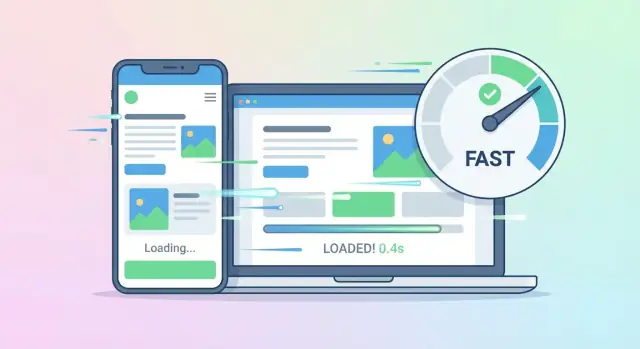
Learn how to build a mobile-friendly website that loads fast: responsive layout, optimized images, lightweight code, caching, testing, and ongoing monitoring.
Most visitors experience your site on a phone—often on a shaky connection, while multitasking. If the page feels slow or jumpy, they don’t “wait it out”—they leave. That’s why a mobile-optimized website and website speed optimization aren’t just technical nice-to-haves: they directly affect bounce rate, trust, and conversions (signups, purchases, calls, bookings).
On mobile, every extra second increases friction: buttons feel harder to tap, text is harder to scan, and the page can look “broken” while it loads. A fast, stable page keeps people moving—scrolling, reading, and completing actions instead of abandoning.
Google’s Core Web Vitals are performance signals that map closely to what people feel:
These metrics don’t replace great content, but they help ensure your content is actually usable on a phone.
Set clear goals so decisions are easier later:
Also aim for a page that feels smooth: visible content appears quickly, interactions respond immediately, and nothing shifts under the user’s finger.
Usually it’s not one big issue—it’s several small ones:
Before you redesign anything, get a clear picture of how your site behaves for real visitors. A desktop Chrome window on a fast connection can hide the exact problems mobile users feel: slow loading, jumpy layouts, and laggy taps.
Open your key pages (homepage, a popular blog post, pricing/product page, checkout/contact) on at least one iPhone and one Android device if possible. Pay attention to what you notice without “hunting” for issues:
Also test in different browsers (Safari + Chrome). Mobile Safari, in particular, can reveal font, sticky header, and viewport quirks that desktop testing won’t.
Next, run a Lighthouse audit in Chrome DevTools (Mobile mode) and check PageSpeed Insights. Don’t focus only on the score—use the report to find the biggest cost centers, such as:
Write down the top 5 opportunities that appear repeatedly across important pages. Those recurring items are usually your best first fixes for website speed optimization.
Core Web Vitals translate “speed” into user experience:
Track these metrics for your top pages. This becomes your “before” snapshot.
Many users aren’t on perfect Wi‑Fi. In Chrome DevTools, simulate slower connections (3G/4G) and watch what breaks first. If you can, test on an older or lower-end Android device too—CPU limits can reveal INP problems that modern phones hide.
Keep it lightweight: a one-page doc or spreadsheet that lists, per page, your current LCP/INP/CLS, total page weight, and a few notes (e.g., “hero image is 1.8MB,” “chat widget blocks load”). You’ll use this baseline to prove each change improves real performance—not just a score.
A fast site can still feel “slow” on mobile if people can’t read, tap, or find what they need. Mobile-first UX means designing for the smallest screen and touch input first—then enhancing for larger screens.
Use a responsive grid and fluid elements so the layout adapts cleanly to any screen size. Avoid fixed-width containers and components that overflow. Test common breakpoints (360–430px phones, small tablets) and make sure key sections don’t require pinch-zoom.
Prioritize legibility: comfortable font sizes, strong contrast, and generous line spacing. For touch, ensure tap targets (buttons, links, form inputs) are large enough and spaced apart so users don’t mis-tap—especially in menus, filters, and checkout/contact forms.
Unexpected movement is one of the quickest ways to lose trust.
Reserve space for:
This keeps the page stable while it loads and improves Core Web Vitals, particularly CLS.
Mobile navigation should be predictable:
Don’t just make the homepage responsive—design the pages that drive outcomes for mobile users:
If you need a checklist for page structure, see /blog/mobile-first-checklist.
Speed work goes smoother when you treat performance like a budget, not a vague goal. A performance budget sets clear limits on what your pages are allowed to “spend” (bytes, requests, and time) so new features don’t quietly slow the site down.
Pick a small set of targets that are easy to measure and hard to argue with:
Write these down as pass/fail numbers. Example targets (adjust to your audience): LCP ≤ 2.5s, INP ≤ 200ms, CLS ≤ 0.1, plus a maximum total transfer size for the first view.
Trying to speed up everything at once usually means nothing ships. Choose the flows that matter most to the business, such as:
Measure these journeys on mobile and optimize them before secondary pages.
For each key page, classify assets:
This mindset leads naturally to tactics like lazy loading, deferring non-essential JavaScript, and loading third-party tools only after user interaction.
Add your budget and Core Web Vitals targets to a shared doc or project board, and link it in your dev process. Then treat any new component as a cost—if it exceeds the budget, something else must be trimmed.
Images are often the biggest files on a page—and the easiest place to win back seconds of load time on mobile connections. The goal isn’t “make everything tiny.” It’s to deliver the right image, in the right format, at the right moment, with no surprise jumps.
srcset)A common mistake is shipping a 2000px-wide desktop image to a 375px-wide phone. Instead, export a few sensible sizes and let the browser pick the best one.
<img
  src="/images/hero-800.jpg"
  srcset="/images/hero-400.jpg 400w,
          /images/hero-800.jpg 800w,
          /images/hero-1200.jpg 1200w"
  sizes="(max-width: 600px) 92vw, 1200px"
  alt="Your product in use"
  width="1200"
  height="675"
/>
This keeps mobile downloads small while preserving crisp visuals on larger screens.
Modern formats can dramatically reduce file size with minimal visible change.
Use a <picture> element so compatible browsers get the modern version, while others fall back gracefully:
<picture>
  <source type="image/avif" srcset="/images/hero-800.avif 800w" />
  <source type="image/webp" srcset="/images/hero-800.webp 800w" />
  <img src="/images/hero-800.jpg" alt="Your product in use" width="1200" height="675" />
</picture>
Compression should be part of your workflow (or build pipeline). Aim for “looks identical at normal viewing distance,” not pixel-peeping perfection.
Also strip metadata (like camera info) unless you truly need it—this reduces file size and can improve privacy.
Lazy loading is ideal for images users won’t see immediately. Keep above-the-fold images loading normally so the page doesn’t feel empty.
<img src="/images/gallery-1.webp" loading="lazy" alt="Gallery item" width="800" height="600" />
If a lazy-loaded image is important to perceived speed (e.g., the first visible image in a section), consider preloading it instead of lazy-loading.
width and height to prevent layout shiftsUnexpected layout movement is frustrating on mobile and can hurt Core Web Vitals. Always include dimensions (or ensure CSS reserves space) so the browser can allocate the correct area before the image arrives.
When you combine responsive sizing, modern formats, compression, and thoughtful lazy loading, you usually get the best of both worlds: fast pages and sharp visuals.
Your CSS and JavaScript are often the biggest “hidden” reasons a mobile-optimized website feels slow. The goal is simple: ship less code, and ship it smarter.
Start with the basics: minify CSS/JS (remove whitespace and extra characters) and enable compression on the server. Modern stacks can serve files with Brotli (best) or gzip (good), which can cut transfer size dramatically—especially on mobile networks.
Many sites load styles and scripts “just in case.” That cost shows up on every page view.
Before adding a slider, animation library, or UI kit, ask: “Can we do this with basic CSS, or a tiny script?” Replacing a large dependency can be one of the fastest wins in website speed optimization.
Make the first screen interactive quickly:
defer for scripts that aren’t needed immediately)Chat widgets, trackers, and ad scripts can slow down Core Web Vitals and make performance unpredictable. Remove any you don’t truly need, and load the rest later (after user interaction or after the page is usable).
If you want a clear checklist, pair this work with a /blog/lighthouse-audit run to see which files are actually hurting your load time.
Even if your layout is clean and your images are optimized, fonts and “nice-to-have” UI effects can quietly add seconds to mobile load time. The goal is to show readable content immediately, then enhance the page without blocking it.
Start by loading fewer font files. Each weight (300/400/700) and style (italic) is usually a separate download—so pick the minimum your design truly needs.
If your brand rules allow it, system fonts are the fastest option because they’re already on the device. A modern system stack can still look polished.
Preload only the fonts that affect above-the-fold text (like your primary body font) so the browser doesn’t “discover” them late.
<link rel="preload" href="/fonts/Inter-400.woff2" as="font" type="font/woff2" crossorigin>
Always prevent invisible text by using font-display: swap, so visitors can read immediately while the custom font loads.
@font-face {
  font-family: "Inter";
  src: url("/fonts/Inter-400.woff2") format("woff2");
  font-display: swap;
}
Large hero sliders, auto-play videos, and complex animations can dominate mobile bandwidth and CPU. Prefer a single static hero image (or a lightweight video that only plays on tap). If you need motion, favor subtle CSS transitions instead of large animation libraries.
Choose UI components that render quickly: native inputs, simple navigation, and lightweight modals. This also tends to improve accessibility (clear focus states, larger tap targets, fewer moving parts).
If you’re using third-party widgets (chat, embeds, social feeds), load them only when needed (after consent or on interaction) so they don’t block the main page experience.
Speed isn’t only about what you build in the browser—it’s also about how quickly your server can deliver files and pages, especially on mobile networks. A few practical infrastructure choices can remove seconds of waiting without changing your design.
Visitors shouldn’t re-download the same logo, CSS, or JavaScript on every page view. Configure browser caching (via Cache-Control headers) so static assets are stored locally.
Typical approach:
app.v3.css) and set a long cache time (30 days to 1 year)This is one of the simplest ways to make repeat visits feel instantly faster.
A CDN (Content Delivery Network) copies your static files to servers around the world, so mobile users download them from a nearby location instead of crossing continents.
A CDN is especially helpful for:
Many CDNs also support automatic compression and modern protocols, which can help your Core Web Vitals.
If your host supports it, enable HTTP/2 (or HTTP/3) to speed up how files are delivered over a single connection. This matters on mobile where latency is often the bottleneck.
You’ll usually get HTTP/2 automatically with HTTPS. HTTP/3 support depends on your provider and CDN.
A fast front-end still feels slow if the server takes too long to respond. Aim for:
In Lighthouse reports, watch for Time to First Byte (TTFB) issues—slow TTFB often points to hosting or backend bottlenecks.
If your pages don’t change per user, full-page caching can be a huge win. If only parts are dynamic (like a cart count), use fragment caching so most of the page is still served quickly.
Rule of thumb: cache the maximum you can, then carefully “punch holes” for truly dynamic content.
A fast mobile experience isn’t only about what you ship in HTML/CSS/JS—it’s also about how quickly the first byte arrives and how efficiently each request travels over the network.
Redirect chains are especially painful on mobile connections because every hop adds DNS, TLS, and request/response time.
For critical content (home, product/service pages, top blog posts), prefer server-side rendering or static generation when suitable. Shipping a mostly-empty HTML shell and waiting on JavaScript to fetch content can delay LCP.
If you do use a JS framework, make sure key content is present in the initial HTML and hydrate progressively.
Analytics, chat widgets, video embeds, and A/B tools often create extra origins. For the ones that matter, add connection hints so the browser can prepare earlier:
<link rel="dns-prefetch" href="//example-third-party.com">
<link rel="preconnect" href="https://example-third-party.com" crossorigin>
Use these sparingly—preconnecting to too many origins can waste mobile bandwidth.
Keep critical CSS small, defer non-essential scripts, and avoid loading heavy third-party tags before the page can render. When possible, move scripts to the end of the document or use defer.
Confirm your server sends compressed assets:
Also ensure HTTP/2 (or HTTP/3 if available) is enabled to reduce connection overhead and improve parallel loading on mobile networks.
Fast pages don’t automatically convert—your interface still has to feel effortless on a small screen. The trick is to remove friction without adding heavy widgets, extra scripts, or distracting overlays that slow the page down.
On mobile, every extra field is a reason to quit. Keep only what you truly need for the next step.
Use smart defaults where possible (country, quantity, shipping method), and take advantage of autofill by using the right input types (email, tel, name) and autocomplete attributes.
If you must collect more data, split it across steps—but keep navigation instant and avoid patterns that force extra page loads.
Validation should guide, not interrupt. Avoid “validate on every keystroke” patterns that freeze typing or cause layout jumps.
Prefer lightweight client-side checks that run on blur (when the field loses focus) or on submit, and show messages inline near the field. Keep error text short, specific, and stable in size so it doesn’t push the page around.
Your primary action should be easy to spot and easy to press:
Also reduce accidental taps: don’t place destructive actions (like “Remove”) too close to “Pay” or “Submit.”
Pop-ups and interstitials can hurt both user trust and mobile flow. If you use them, keep them rare, small, and easy to dismiss.
Avoid loading heavy third-party scripts just to show a discount modal. Consider lighter alternatives like an inline banner or a small, non-blocking slide-in.
Accessibility improvements often boost completion rates for everyone:
When your conversion UI is simple, stable, and tap-friendly, you’ll get better results—and you’ll keep the page lean enough to stay fast on real mobile networks.
Google primarily evaluates your site as a mobile user would—so mobile usability and speed directly influence visibility. The good news: many “SEO improvements” are also user experience improvements.
Core Web Vitals (LCP, INP, CLS) aren’t just technical metrics—they map to how fast your main content appears, how responsive the page feels, and how stable the layout is.
For SEO, ensure the main page content is available immediately, not hidden behind client-side rendering or large bundles.
Practical checks:
Fast pages still need clear relevance signals:
Mobile users navigate differently, so make internal links obvious and lightweight.
Examples: link to /pricing, /contact, and key service pages from high-traffic pages—using descriptive anchor text rather than “click here.”
Late-loading cookie notices, promo bars, and chat widgets often cause CLS spikes.
Reserve space for them from the start (or use overlays that don’t push content down), and avoid injecting large banners above the fold after the page is already visible.
Speed isn’t something you “finish”—it’s something you maintain. A few new images, a marketing tag, or a widget can quietly undo weeks of website speed optimization. The goal is to make performance checks part of your normal workflow, not a once-a-year cleanup.
Treat performance like a feature with pass/fail criteria.
If you keep a performance budget, make the build warn (or fail) when bundles, images, or third-party scripts push you over the limit.
Lab tests are useful, but your visitors’ phones and networks are the truth.
Analytics, chat widgets, A/B testing, and ad pixels often become the heaviest part of a mobile experience.
Create a simple “performance checklist” for content updates:
If you’re starting from scratch, choosing a stack and workflow that encourages responsive web design and good defaults matters. For example, Koder.ai lets teams build web apps through a chat interface while still exporting real source code—so you can iterate quickly, then enforce performance budgets, SSR/static generation where it fits, and careful dependency choices as the product grows.
Plan regular reviews as pages and assets grow. A 30-minute monthly check on your top pages can prevent slowdowns from turning into a full rebuild.
A mobile-optimized, fast site reduces bounce rate and increases conversions because mobile visitors often have limited attention, smaller screens, and weaker connections. If pages feel slow, unresponsive, or visually “jumpy,” users leave before they read or buy.
They’re user-experience metrics that reflect what people feel:
Use them as practical targets for “fast enough,” not just a score chase.
Desktop testing can hide mobile problems. Do this:
Common culprits include:
Design mobile-first by prioritizing readability and touch:
If you want a structure checklist, reference /blog/mobile-first-checklist.
Reserve space before content loads:
width/height (or CSS aspect ratio) on imagesThis directly improves CLS and prevents mis-taps caused by shifting buttons.
Use a responsive approach:
srcset and let the browser choose<picture>)Focus on shipping less code and loading it later:
defer, code-splitting, and lazy-loading for non-critical featuresA performance budget sets hard limits so pages don’t slowly get heavier over time. Track a few pass/fail numbers:
Then optimize 1–2 key user journeys first (e.g., landing → product → checkout) and treat every new widget as a “cost.”
Combine lab checks with real-user monitoring:
Also include dimensions to avoid CLS.