

Dec 09, 2025·7 min
Audit-friendly CSV exports that stay stable over time
Audit-friendly CSV exports customers can rely on: clear column names, safe date formats, UTF-8 encoding, and stable schemas that keep spreadsheets happy.
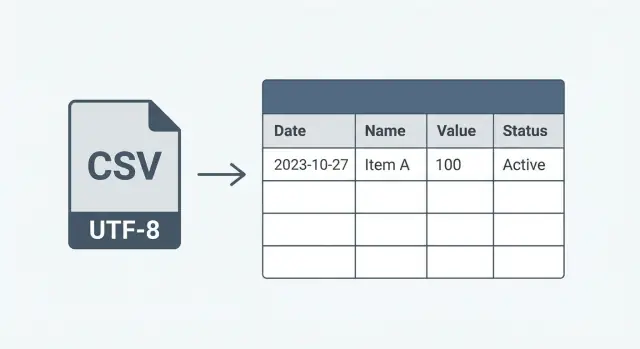
Audit-friendly CSV exports customers can rely on: clear column names, safe date formats, UTF-8 encoding, and stable schemas that keep spreadsheets happy.
People export CSVs when they need a clean trail: audits, month-end reconciliations, sharing data with accountants, or keeping a backup outside your app. The catch is that spreadsheets are picky, and many teams only learn that after customers build a workflow around the file.
Most breaks come from small, quiet changes. A new column gets inserted in the middle, a header is renamed, or a date format shifts after an update. That can ruin formulas, pivot tables, and saved import steps because they often depend on column position and predictable names.
Breaks usually look like this:
The tricky part is that the CSV can still open, so it looks fine until someone compares totals, sees missing rows, or discovers that a pivot is counting the wrong field.
Audit-friendly CSV exports are less about making a perfect file today and more about staying consistent over time. Customers can work around a known limitation. They can’t work around a file that changes shape every release and makes last month’s process stop working.
Audit-friendly exports start with a few written rules. Without them, every new feature becomes a chance to quietly change a column name, flip a date format, or swap a number type, and customers only notice when a spreadsheet breaks during an audit.
Start by being clear about the primary user. Finance usually wants totals, money fields, and predictable month boundaries. Ops cares more about statuses and timestamps. Support needs IDs they can search and share. Analysts want raw fields with minimal “helpful” formatting.
Next, define what “stable” means. The safest definition is boring: the same columns, with the same meanings, and the same data types every time. If a column is called invoice_total, it should not sometimes mean “with tax” and other times mean “without tax”.
Pick a compatibility target and optimize for it. Many teams assume Excel, but some customers import into Google Sheets or a BI tool. Your rules should say what you test against and what “passes” (for example: opens cleanly, dates parse, no shifted columns).
It also helps to write down non-goals so exports don’t slowly turn into a reporting system:
If a finance user reconciles monthly payouts, they need a consistent set of columns they can compare across months, even as your product evolves.
Most CSV export problems start with the header row. If people build formulas, pivot tables, or import rules around your export, a small header change can break months of work.
Pick one naming style and stick to it. snake_case is easy to read and works across tools, but lowerCamelCase is also fine. Consistency matters more than the style. Avoid spaces, commas, slashes, quotes, and other punctuation that some importers treat as special characters.
Keep column names stable even if the UI label changes. A button might say “Customer” today and “Client” next month, but the CSV header should stay customer_id or customer_name. Treat CSV headers like an API contract.
Ambiguous fields deserve extra clarity. A column called status is risky if it can mean different things in different screens. Make the meaning obvious in the name (or add a companion column), and be consistent about allowed values.
Use explicit units in the name when a number needs context. That prevents silent misunderstandings and reduces back-and-forth during audits.
A few naming rules hold up well over time:
invoice_id, created_at, payment_statusamount_cents, duration_seconds, weight_gramsbilling_country and shipping_country (not just country)order_type or subscription_status instead of type or statusExample: if you export transactions and later add refunds, keep amount_cents as the signed transaction amount and add refund_amount_cents (or transaction_kind) rather than redefining what amount_cents means. Old spreadsheets stay correct, and the new logic is explicit.
A CSV export becomes an unofficial contract the moment a customer builds a spreadsheet, a pivot table, or an import script around it. If you rename or move columns, their workflow breaks quietly, which is the opposite of audit-friendly.
Treat the schema like an API. Make changes in a way that keeps old files comparable and keeps formulas pointing to the same places.
Rules that hold up in real audits:
amount_cents (raw) and amount_display (formatted) so customers can choose what to trust.export_version) so customers can record it with their audit evidence.Concrete example: a finance team downloads a monthly “Invoices” CSV and uses a saved Excel template. If you change invoice_total to total or move it earlier in the file, the workbook may still open but show wrong totals. If instead you add tax_total as a new last column and keep invoice_total unchanged, their template keeps working and they can adopt the new field when ready.
Dates are where exports often fall apart. The same value can show up differently in Excel, Google Sheets, and import tools, especially when files cross countries or time zones.
Use ISO 8601 and be consistent:
YYYY-MM-DD (example: 2026-01-16)YYYY-MM-DDTHH:MM:SSZ (example: 2026-01-16T14:03:27Z)The Z matters. It tells tools the time is in UTC. If you must use local time, include the offset (example: 2026-01-16T14:03:27+02:00) and document that choice. Mixing UTC and local timestamps in one export is a common source of one-hour and one-day shifts.
Avoid locale formats like 01/02/2026. Half your users will read it as January 2, the other half as February 1. Also avoid pretty formats like 16 Jan 2026 because they sort and parse inconsistently.
Empty dates should be truly empty. Don’t use 0, N/A, or 1970-01-01 unless that date is real. When a value is missing, a blank cell is easiest to filter and audit.
Finally, name what the date means. A column called date is vague. Prefer created_at, updated_at, posted_at, or business_date. An invoice export might have issued_date (date only) and paid_at (timestamp in UTC). That clarity prevents disputes later when someone asks, “Which date did this report use?”
Spreadsheets are unforgiving with numbers. One small change, like adding a comma or a currency symbol, can flip a column from numeric to text, and then totals, pivots, and filters quietly stop working.
Pick one decimal format and never change it. A safe default is a dot as the decimal separator (for example, 1234.56). Avoid thousands separators like 1,000 or 1 000. Many imports treat those as text, or parse them differently depending on locale.
For money, keep the numeric value clean. Don’t mix currency symbols (€, $, £) into the amount column. Add a separate currency code column (for example, USD, EUR). That makes the export easier to sum, compare, and re-import.
Decide early how to represent money and stick to it:
amount = 19.99) are readable but require clear rules for rounding and decimal places.amount_cents = 1999) are unambiguous for calculations but need a clear column name and documentation.Be consistent with negatives. Use a leading minus sign (-42.50). Avoid parentheses ((42.50)) or trailing minus (42.50-), which are often interpreted as text.
Example: if a customer exports invoice totals every month and sums the amount column, changing from 1200.00 to $1,200.00 can break formulas without an obvious error. Keeping amounts numeric and adding currency_code prevents that kind of silent failure.
Start with the plumbing: encoding, separator, and quoting. Many spreadsheet problems happen here, not in the business logic.
Use UTF-8 for the file encoding and test with real names like “José”, “Zoë”, “Miyuki 山田”, or “Oğuz”. Some spreadsheet apps still misread UTF-8 unless the file has a UTF-8 BOM. If your customers mostly open CSVs in Excel, decide whether you include a BOM and keep that choice consistent.
Pick one delimiter (usually a comma) and stick with it. If you choose comma, follow standard quoting rules:
" becomes "").Row endings matter more than they should. For maximum Excel compatibility, many teams use CRLF (\r\n). The key is consistency: don’t mix \n and \r\n within the same export.
Protect your headers from invisible differences. Avoid smart quotes, hidden tabs, and non-breaking spaces. A common failure is a header that looks like Customer Name but is actually Customer⍽Name (different character), causing imports and audit scripts to break.
A quick sanity check: open the file in a plain text viewer and confirm you see normal quotes (") and plain commas, not curly quotes or unusual separators.
A stable export is a promise. Clear meaning for each column, predictable formats, and changes that don’t surprise customers who rely on month-to-month comparisons.
List every field and define the column. Write down the exact column name, what it means, whether it can be blank, and where it comes from. If two columns sound similar (for example, status vs payment_status), fix the ambiguity now.
Pick canonical formats and stick to them. Decide once for dates and times, money, booleans, and enums. For example: ISO 8601 timestamps, currency in minor units (cents) or a fixed decimal rule, booleans as true/false, and enums with a closed set of values.
Create sample CSVs that include edge cases. Keep a small set of files that cover empty fields, commas and quotes in text, very large numbers, international characters, and dates near month boundaries. These become your “golden” examples.
Add schema versioning and release notes. Include a schema_version column (or a header comment if you control the reader) and keep a short changelog. If you add a column, append it to the end. If you must rename or remove something, publish a new version instead of silently changing it.
Run automated checks before every release. Compare today’s output to yesterday’s: column order, names, types, and sample parsing in Excel and Google Sheets. This is the fastest way to stop drift over time.
Most broken imports aren’t caused by “bad CSV”. They happen when an export changes in small ways and spreadsheets or downstream scripts quietly misread it. For audits, those small changes turn into hours of rework.
One common trap is renaming a column because a UI label changed. A header like Customer becomes Client, and suddenly Excel Power Query steps fail or a finance team’s pivot drops a field.
Another frequent issue is changing date formats to match one customer’s locale. Switching from 2026-01-16 to 16/01/2026 might look nicer for someone, but it will be read differently in other regions (and sometimes as text). Sorting, filtering, and month grouping then fail in subtle ways.
Null handling also causes confusion. If one numeric column mixes empty cells, NULL, and 0, people can’t reliably tell “unknown” from “none” from “zero”. That shows up later when someone reconciles totals and can’t explain the gap.
Teams also export only pretty values. They output Paid and omit the raw status_code, or they export a customer name but not a stable customer ID. Pretty text is fine, but without raw IDs you can’t reliably join tables or trace a record back during an audit.
Schema drift hurts the most when you add columns in the middle. Many imports are position-based even if users think they aren’t. Inserting a new column can shift everything to the right and corrupt the dataset.
Safer habits that prevent most failures:
Before you ship a new export (or change an old one), run checks that mirror how customers actually use CSVs. Open them in spreadsheets, save them, and compare them month to month. The goal is simple: the file should behave the same way every time.
Schema basics:
Dates and time zones:
2026-01-16 and datetimes like 2026-01-16T14:30:00Z (or with an offset)Open tests (Excel and Google Sheets):
Treat this checklist as a release gate, not a nice-to-have.
A finance team closes the month, then downloads a CSV of all transactions for the auditor. They keep one workbook and reuse it every month because the checks are the same.
That workbook usually:
Now imagine your export changes in a small way. Last month the CSV had a column named amount. This month it becomes total_amount, or it moves earlier in the file. The import still loads, but formulas point to the wrong column, pivots lose their fields, and the audit checks look off without any obvious error. Teams can lose a day chasing a problem that isn’t in the data, just in the format.
A stable approach is boring, and that’s the point. When you truly have to change something, communicate it like an accountant would want: what changed, why, when it takes effect, and how to update the workbook. Include a clear mapping (old column to new column) and a short example row.
Treat your CSV export like a product feature with a promise, not a one-off download button. The fastest way to earn trust is to write down what you guarantee, then make sure every release keeps that promise.
Create a simple “export contract” document that spells out the file name pattern, column names and meanings, required vs optional fields, date/time formats, encoding, delimiter, quoting rules, and what “empty” means (blank vs 0 vs NULL). Update it in the same release that changes the export.
Then add regression tests for stability. Save a handful of real sample CSVs (including edge cases) and compare new output to expectations. Check schema (columns present, order, headers), formatting (dates, decimals, negatives, empty fields), and encoding/quoting with non-English names and commas in text.
When a breaking change is unavoidable, plan a deprecation window. Keep old columns populated for a while, add new columns at the end, and document when older columns stop being filled. If you need a clean break, export a versioned format so audit workflows can stay on the older schema until they’re ready.
If you’re iterating on export features quickly, it helps to build with tooling that supports snapshots and rollback so you can ship, validate with real customer workbooks, and revert fast if something shifts. Teams using Koder.ai (koder.ai) often lean on that snapshot-and-rollback workflow while they lock down a stable export contract.
The safest rule is: never reorder or rename existing columns once customers rely on the export. If you need to add data, append new columns at the end and keep the old ones unchanged so spreadsheets and import steps keep pointing to the right place.
Treat CSV headers like an API contract. Keep the header names stable even if the UI wording changes, and prefer simple, consistent styles like snake_case without spaces or punctuation so importers don’t misread them.
Use ISO 8601 everywhere: YYYY-MM-DD for dates and YYYY-MM-DDTHH:MM:SSZ for timestamps. Don’t switch between UTC and local time within the same export, and avoid locale formats like 01/02/2026 because different regions interpret them differently.
Keep amount columns purely numeric and consistent, like amount_cents as an integer or a fixed decimal format like 1234.56. Put currency in a separate column (for example currency_code) and avoid symbols, thousands separators, or parentheses for negatives because they often turn numbers into text.
Use UTF-8 and test with real international characters to confirm names don’t turn into garbled text. If many users open files in Excel, a UTF-8 BOM can improve compatibility, but the key is choosing one approach and sticking with it across releases.
Pick one delimiter (commonly a comma) and follow standard CSV quoting rules so commas, quotes, and newlines inside a field don’t split columns. If a field contains a comma, quote, or newline, wrap it in double quotes and escape internal quotes by doubling them.
Use truly empty cells for missing values and be consistent across the file. Don’t mix blank, NULL, N/A, and 0 in the same column unless they have different meanings you’re intentionally preserving.
Export both when possible: a stable raw ID for joins and tracing, plus a human-readable label for convenience. Names change and can be duplicated, but IDs stay stable and make audits and reconciliations much easier.
Add an explicit schema_version or export_version field so customers can record what they used for month-end evidence. It also helps your team support older workflows by knowing exactly which format a file came from.
Keep a small set of “golden” sample CSVs that include edge cases like commas in text, large IDs, empty fields, and tricky dates, then compare new exports against them before release. If you generate exports with Koder.ai, snapshots and rollback are a practical safety net when you discover a schema drift after shipping.