

Dec 29, 2025·8 min
Admin tools that prevent data loss: safer bulk actions
Admin tools that prevent data loss use safer bulk actions, clear confirmations, soft deletes, audit logs, and role limits so operators avoid costly mistakes.
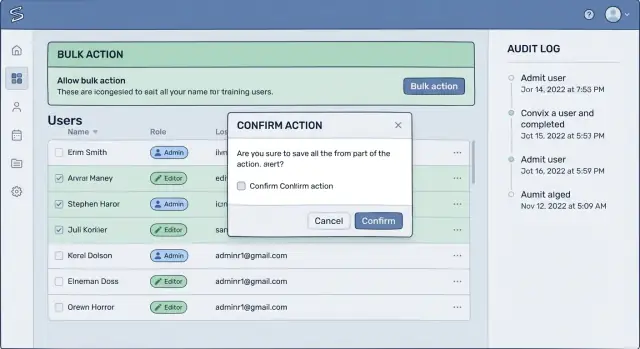
Where data loss happens in admin tools
Internal admin tools feel safer because “only staff” can use them. That trust is exactly why they are high-risk. The people using them have power, work fast, and often do the same action many times a day. One slip can touch thousands of records.
Most accidents are not caused by bad intent. They come from “oops” moments: a filter that was too broad, a search term that matched more than expected, or a dropdown that stayed on the wrong tenant. Another classic is the wrong environment: someone thinks they are in staging, but they are looking at production because the UI looks almost the same.
Speed and repetition make this worse. When a tool is built to move quickly, users learn muscle memory: click, confirm, next. If the screen lags, they click twice. If a bulk action takes time, they open a second tab. These habits are normal, but they create the conditions for mistakes.
“Destroy data” is not only pressing a delete button. In practice it can mean:
- Deleting records (including cascading deletes)
- Overwriting fields (like setting status to “closed” for the wrong set)
- Detaching relationships (unlinking a user from an account, removing permissions)
- Purging history (clearing logs, wiping messages, truncating tables)
- Irreversible exports or syncs (pushing wrong data into another system)
For teams building admin tools that prevent data loss, “safe enough” should be a clear agreement, not a vibe. A simple definition: a rushed operator should be able to recover from a common mistake without engineering help, and a rare irreversible action should require extra friction, clear proof of intent, and a record you can audit later.
Even if you build apps quickly with a platform like Koder.ai, these risks stay the same. The difference is whether you design guardrails from day one or wait for the first incident to teach you.
Start with a simple risk map
Before you change any UI, get clear on what can actually go wrong. A risk map is a short list of actions that can cause real harm, plus the rules that must surround them. This step is what separates admin tools that prevent data loss from admin tools that only look careful.
Start by writing down your most dangerous actions. These are usually not the everyday edits. They are the operations that change many records fast or touch sensitive data.
A useful first pass is:
- Delete, merge, close, or hard-disable accounts
- Reassign ownership (customers, invoices, tickets, leads)
- Imports and bulk updates (CSV, API jobs, migrations)
- Billing actions (refunds, credits, cancellations)
- Permission changes (roles, access to PII)
Next, mark each action as reversible or irreversible. Be strict. If you can only reverse it by restoring from a backup, treat it as irreversible for the operator who is doing the work.
Then decide what must be protected by policy, not just design. Legal and privacy rules often apply to PII (names, emails, addresses), billing records, and audit logs. Even if a tool can technically delete something, your policy may require retention or a two-person review.
Separate routine operations from exceptional operations. Routine work should be fast and safe (small changes, clear undo). Exceptional work should be slower on purpose (extra checks, approvals, tighter limits).
Finally, agree on simple “blast radius” terms so everyone speaks the same language: one record, many records, all records. For example, “reassign this one customer” is different from “reassign all customers from this sales rep.” That label will later drive your defaults, confirmations, and role limits.
Example: in a vibe-coding project on Koder.ai, you might tag “bulk import users” as many-records, reversible only if you log every created ID, and policy-protected because it touches PII.
Patterns for safer bulk actions
Bulk actions are where good admin tools turn into risky ones. If you’re building admin tools that prevent data loss, treat every “apply to many” button like a power tool: useful, but designed to avoid slips.
A strong default is a preview first, then a run. Instead of executing right away, show what would change and let the operator confirm only after they see the scope.
Make the scope explicit and hard to misunderstand. Don’t accept “all” as a vague idea. Force the operator to define filters like tenant, status, and a date range, then show the exact number of records that match. A small sample list (even 10 items) helps people notice mistakes like “wrong region” or “archived included.”
A practical pattern that works well:
- Start with a dry run screen that shows count, filters, and a short sample of affected records
- Require an explicit scope choice (for example: “Only Active customers in Tenant A, created before 2024-01-01”)
- Cap each run (like 1,000 records) and ask to run again for the next batch
- Throttle changes so one bad click does not hammer the database or downstream systems
- Run as a queued job with progress, logs, and a clear cancel option
Queued jobs beat “fire-and-forget” because they create a paper trail and give the operator a chance to stop the action when they notice something off at 5% complete.
Example: an operator wants to bulk disable user accounts after a fraud spike. The preview shows 842 accounts, but the sample includes VIP customers. That small clue often prevents the real mistake: a filter missing “fraud_flag = true.”
If you’re assembling an internal console quickly (even with a build-by-chat platform like Koder.ai), bake these patterns in early. They save more time than they add.
Confirmation flows people actually read
Most confirmations fail because they are too generic. If the screen says “Are you sure?”, people click through on autopilot. A confirmation that works uses the same words your user would use to explain the outcome to a teammate.
Replace vague labels like “Delete” or “Apply” with the real impact: “Deactivate 38 accounts”, “Remove access for this tenant”, or “Void 12 invoices”. This is one of the simplest admin tools that prevent data loss improvements you can make, because it turns a reflex click into a moment of recognition.
Make the user confirm the scope
A good flow forces a quick mental check: “Is this the right thing, on the right set of records?” Put the scope in the confirmation, not just on the page behind it. Include the tenant or workspace name, the record count, and any filters like date range or status.
For example: “Close accounts for Tenant: Acme Retail. Count: 38. Filter: last login before 2024-01-01.” If any of those values look off, the user catches it before damage happens.
When the action is truly destructive, require a small, deliberate act. Typed confirmations work well when the cost of a mistake is high.
- Ask for a short phrase like DELETE 38 ACCOUNTS
- Or ask them to type the tenant name exactly
- Or require re-entering the count shown on screen
Use two steps only when the impact is high
Two-step confirmations should be rare, or users will ignore them. Save them for actions that are hard to recover, cross tenants, or affect money. Step one confirms intent and scope. Step two confirms timing, like “Run now” vs “Schedule”, or requires a higher-permission approval.
Finally, avoid “OK/Cancel”. Buttons should say what happens: “Deactivate accounts” and “Go back”. This reduces wrong clicks and makes the decision feel real.
Soft deletes, restores, and retention rules
Practice with rollback
Test destructive flows with snapshots so you can revert after an “oops” run.
Soft delete is the safest default for most user-facing records: accounts, orders, tickets, posts, and even payouts. Instead of removing the row, mark it as deleted and hide it from normal views. This is one of the simplest patterns behind admin tools that prevent data loss, because mistakes become reversible.
A soft delete policy needs a clear retention window and clear ownership. Decide how long deleted items stay restorable (for example, 30 or 90 days), and who is allowed to bring them back. Tie restore rights to roles, not individuals, and treat restores as production changes.
Make restore obvious (and logged)
Restoring should be easy to find when someone is looking at a deleted record, not buried in a separate screen. Add a visible status like “Deleted”, show when it happened, and show who did it. When a restore happens, log it as its own event, not as an edit to the original delete.
A quick way to define your retention rules is to answer these questions:
- What is the default retention period per object type?
- Which role can restore, and do they need a reason?
- What happens after the retention period expires?
- Who can extend retention for legal or billing cases?
- How do you handle “delete my data” requests?
Edge cases that break restores
Soft delete sounds easy until you restore into a world that has moved on. Unique constraints can collide (a username was reused), references can be missing (a parent record was deleted), and billing history must remain consistent even if the user is “gone.” A practical approach is to keep immutable ledgers (invoices, payment events) separate from user profile data, and to restore relationships carefully, with clear warnings when a full restore is not possible.
Hard delete should be rare and explicit. If you allow it, make it feel like an exception, with a short approval path:
- Require a higher role than soft delete
- Ask for a typed confirmation and a reason
- Queue the delete with a delay (for example, 24 hours)
- Notify an owner or on-call channel
- Keep a final audit record even after removal
If you are building your admin on a platform like Koder.ai, define soft delete, restore, and retention as first-class actions early, so they are consistent across every generated screen and workflow.
Auditability: make actions explainable later
Accidents happen in admin panels, but the real damage often comes later: nobody can answer what changed, who did it, and why. If you want admin tools that prevent data loss, treat audit logs as part of the product, not a debugging afterthought.
Start by logging actions in a way a human can read. “User 183 updated record 992” is not enough when a customer is upset and the on-call person is trying to fix it fast. Good logs capture identity, timing, scope, and intent, plus enough detail to roll back or at least understand impact.
What to record (so it’s useful later)
A practical baseline is:
- Who did it (user, role, and impersonation info if used)
- What and where (action name, tenant/account, and affected object types)
- When and from where (timestamp, timezone, IP or device/session ID)
- What changed (before/after for key fields, or a diff for larger objects)
- Why it happened (free-text reason and an optional ticket/reference ID)
Bulk actions deserve special treatment. Log them as a single “job” with a clear summary (how many selected, how many succeeded, how many failed), and also store per-item results. This makes it easy to answer, “Did we refund 200 orders or only 173?” without digging through a wall of entries.
Make logs easy to search: by admin user, tenant, action type, and time range. Include filters for “bulk jobs only” and “high-risk actions” so reviewers can spot patterns.
Don’t force bureaucracy. A short “reason” field that supports templates (“Customer requested closure”, “Fraud investigation”) gets filled more often than a long form. If there’s a support ticket, let people paste the ID.
Finally, plan read access. Many internal users need to view logs, but only a small group should see sensitive fields (like full before/after values). Separate “can view audit summaries” from “can view details” to reduce exposure.
Role-based limits and guardrails
Most accidents happen because permissions are too broad. If everyone is effectively an admin, a tired operator can do permanent damage with a single click. The goal is simple: make the safe path the default, and make risky actions require extra intent.
Design roles around real jobs, not titles. A support agent who answers tickets does not need the same access as someone who manages billing rules.
Build roles around tasks
Start by separating what people can see from what they can change. A practical set of internal roles might look like:
- Read-only: view users, orders, and logs
- Operator: edit profiles and reset passwords
- Billing operator: issue refunds within a cap
- Data steward: merge records and run bulk fixes
- Security admin: disable accounts and manage roles
This keeps "delete" out of everyday work and reduces the blast radius when someone makes a mistake.
For the most dangerous actions, add an elevated mode. Think of it like a time-limited key. To enter elevated mode, require a stronger step (re-auth, manager approval, or a second person) and automatically drop back after 10 to 30 minutes.
Environment guardrails also save teams. The UI should make it hard to confuse staging with production. Use loud visual cues, show the environment name in every header, and disable destructive actions in non-production unless you explicitly toggle them on.
Finally, protect tenants from each other. In multi-tenant systems, cross-tenant changes should be blocked by default and only enabled for specific roles with an explicit tenant switch and clear on-screen confirmation.
If you are building on a platform like Koder.ai, treat these guardrails as product features, not afterthoughts. Admin tools that prevent data loss are often just good permission design plus a few well-placed speed bumps.
A realistic scenario: bulk refunds and account closures
Plan guardrails first
Sketch roles, confirmations, and retention rules before you generate the first screen.
A support agent needs to handle a payment outage. The plan is simple: refund affected orders, then close the accounts that requested cancellation. This is exactly where admin tools that prevent data loss earn their keep, because the agent is about to run two high-impact bulk actions back-to-back.
The risk shows up in one tiny detail: the filter. The agent selects “Orders created last 24 hours” instead of “Orders paid during outage window.” On a busy day, that could pull in thousands of normal customers, triggering refunds they never asked for. If the next step is “Close accounts for refunded orders,” the damage spreads fast.
Before the tool executes anything, the UI should force a pause with a clear preview that matches how people think, not how the database thinks. For example, it should show:
- Total accounts that will be closed (and how many are already closed)
- Total refund amount, plus min/max refund sizes
- A small, scrollable sample of affected customers (names, emails, order IDs)
- Exceptions and skips (failed payments, already refunded, disputed orders)
- The exact filter summary in plain language, with an obvious “Edit filter” button
Then add a second, separate confirmation for account closure, because it is a different kind of harm. A good pattern is to require typing a short phrase like “CLOSE 127 ACCOUNTS” so the agent notices if the number looks wrong.
If “close account” is a soft delete, recovery is realistic. You can restore the accounts, keep logins blocked, and set a retention rule (for example, auto-purge after 30 days) so it does not become permanent trash.
Audit logs are what make cleanup and investigation possible later. The manager should see who ran it, the exact filter, the preview totals shown at the time, and a list of affected records. Role limits matter too: agents can run refunds up to a daily cap, but only a manager can close accounts, or approve closures above a threshold.
If you build this kind of console in Koder.ai, features like snapshots and rollback are useful extra guardrails, but the first line of defense is still the preview, the confirmations, and the roles.
Step-by-step: retrofit safety into an existing admin
Retrofitting safety works best when you treat your admin like a product, not a pile of internal pages. Pick one high-risk workflow first (like bulk user disables), then move step by step.
A practical retrofit plan
Start by listing the screens and endpoints that can delete, overwrite, or trigger money movement. Include “hidden” risks like CSV imports, bulk edits, and scripts that operators run from the UI.
Then make bulk actions safer by forcing scope and preview. Show exactly which records match the filters, how many will change, and a small sample of IDs before the action runs.
Next, replace hard deletes with soft delete where you can. Store a deleted flag, who did it, and when. Add a restore path that is just as easy to use as delete, plus clear retention rules (for example, “restorable for 30 days”).
After that, add an audit log and sit with operators to review real entries. If a log line cannot answer “what changed, from what to what, and why,” it will not help during incidents.
Finally, tighten roles and add approvals for high-impact actions. For example, allow support to issue refunds up to a small limit, but require a second person for large amounts or account closures. This is how admin tools that prevent data loss stay usable without being scary.
Quick example
An operator needs to close 200 inactive accounts. Before the change, they click “Delete” and hope filters are correct. After the retrofit, they must confirm the exact query (“status=inactive, last_login>365d”), review the count and sample list, choose “Close (restorable)” instead of delete, and enter a reason.
A good “done” standard is:
- You can preview and export the affected set before executing.
- You can undo (restore or rollback) within a defined window.
- Every action is attributable to a person and a reason.
- High-impact actions are limited by role or require approval.
If you are building internal tools in a chat-driven platform like Koder.ai, add these guardrails as reusable components so new admin pages inherit safer defaults.
Common mistakes that still lead to accidents
Keep control of code
Export the source code anytime to review, extend, or move into your own pipeline.
Many teams build admin tools that prevent data loss in theory, then lose data in practice because the safety features are easy to ignore or hard to use.
The most common trap is the one-size-fits-all confirmation. If every action shows the same “Are you sure?” message, people stop reading it. Even worse, teams often add more confirmations to “fix” mistakes, which trains operators to click faster.
Another issue is missing context at the moment it matters. A destructive action should clearly show which tenant or workspace you are in, whether this is production or a test environment, and how many records will be touched. When that information is buried on another screen, the tool is quietly asking for a bad day.
Bulk actions can also be dangerous when they run instantly with no tracking. Operators need a clear job record: what ran, on which filter, who started it, and what the system did when it hit an error. Without that, you cannot pause, undo, or even explain what happened.
Here are mistakes that show up again and again:
- Using the same confirmation text for deletes, refunds, and permission changes
- Adding confirmations so often that people click through on autopilot
- Not showing the record count, tenant, and environment on the confirmation screen
- Running bulk actions immediately with no preview, no job page, and no way to stop
- Keeping audit logs, but not making them searchable by user, record, or time
A quick example: an operator intends to deactivate 12 accounts in a sandbox tenant, but the tool defaults to the last used tenant and hides it in the header. They run a bulk action, it executes instantly, and the only “log” is a vague entry like “bulk update completed.” By the time anyone notices, you cannot easily tell what changed or restore it.
Good safety is not more popups. It is clear context, meaningful confirmations, and actions you can track and reverse.
Quick checklist and next steps
Before you ship a destructive action, do one last pass with fresh eyes. Most admin incidents happen when a tool lets someone act on the wrong scope, hides the real impact, or offers no clear way back.
Here’s a quick pre-flight checklist for admin tools that prevent data loss:
- Scope + preview: show exactly what will change (who, what, where). Include a readable preview and a sample of affected records.
- Counts + limits: display the total number of items and enforce sensible caps (and rate limits) so one click cannot touch “everything.”
- Context checks: make the operator confirm the tenant/account, environment (prod vs test), and add a short reason that will appear in logs.
- Recovery path: prefer soft delete where you can, confirm the restore flow works, and define retention (how long recovery is possible).
- Accountability: log who did what, when, from where, and with what filters. Make logs searchable, and ensure roles match real responsibilities.
If you’re an operator, pause for ten seconds and read the tool back to yourself: “I am acting on tenant X, changing N records, in production, for reason Y.” If any part feels unclear, stop and ask for a safer UI before running the action.
Next steps: prototype safer flows quickly in Koder.ai using Planning Mode to sketch the screens and guardrails first. While testing, use snapshots and rollback so you can try real-world edge cases without fear. Once the flow feels solid, export the source code and deploy when you’re ready.